Your note types and test request follow-up
You can now create your own note types and tell the AI what writing style to use for you. On the Solicitudes (Test requests) tab, tests ordered in this visit also stay separate from those still pending from earlier visits, so you can mark them as done or cancel them from the same list.
Your note types and your AI guide
Open Perfil → Guía de la IA (Profile → AI guide) to create up to 10 note types of your own, or create one right from the visit with Nuevo tipo de nota (New note type) at the bottom of the Tipo de nota (Note type) selector. Each format starts from an editable template so you can set the section order and style you prefer. On the Nota (Note) tab, they appear above the catalog under Mis tipos de nota (My note types), with a pencil icon to edit them anytime. When you pick one, the AI drafts the note following your instructions, and Astrocyte remembers the last note type you used for your next visit.
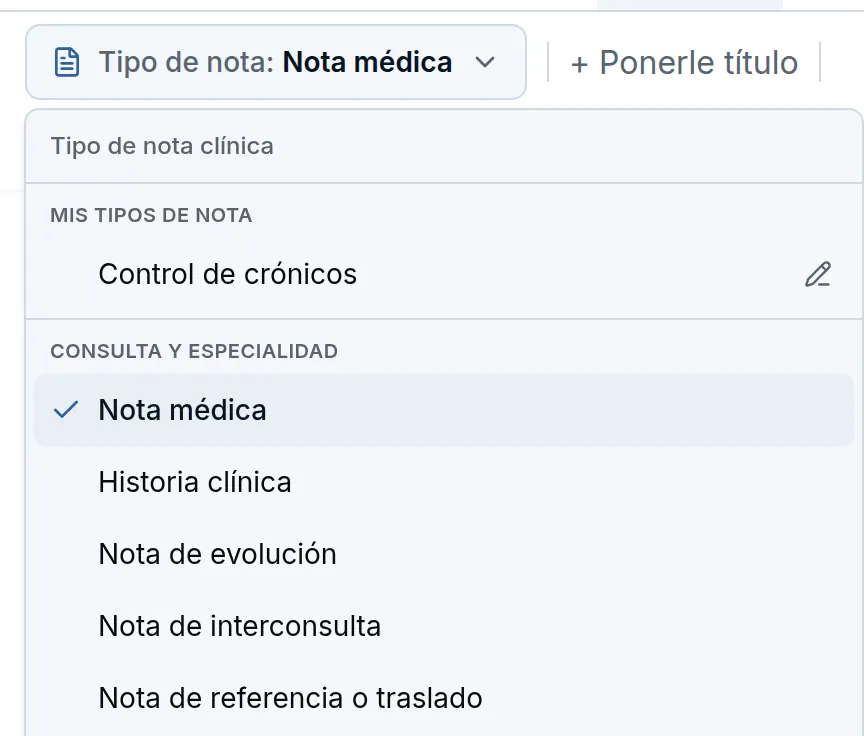
Your note type only changes how the text is written: patient details, vital signs, diagnoses, and treatment continue to be saved in their own sections of the health record. Because this format is used across all your visits, avoid putting patient data in it and review the draft before saving, especially if your template asks for sections that were not discussed.
On the same screen, Mi guía de la IA (My AI guide) lets you save general writing rules, with ready-to-use Estilo (Style) and Para el paciente (For the patient) examples. You can choose whether they apply to what is written for the health record, for the patient, for others, or in the chat, and decide whether the AI addresses the patient informally (de tú) or formally (de usted). Further down, Mis indicaciones al paciente (My patient instructions) lets you set your own format for the instructions the AI drafts in Tratamiento (Treatment); you can also open and edit it directly from the visit.
Organization administrators have Guías de la IA (AI guides) in the Panel de administración (Admin panel) to set clinic-wide rules. Each guide can be suggested, as a starting point for the team, or enforced, so it always applies even over a clinician’s own guide and note types; from the same screen, administrators can turn personal formats on or off without losing any already created. In Panel de administración → Diagnósticos (Admin panel → Diagnoses), they can also exclude ICD-10 codes the clinic does not use or set one code to be replaced by another in both the diagnosis search and AI proposals.
Test requests from earlier visits
On the Solicitudes (Test requests) tab, the Solicitudes activas (Active requests) list separates what you order in this visit from what remained pending from earlier ones. At the top, En esta consulta (In this visit) groups today’s orders by lab or destination; below, De otras consultas (From other visits) lists each earlier test with the date it was ordered and where it was sent.
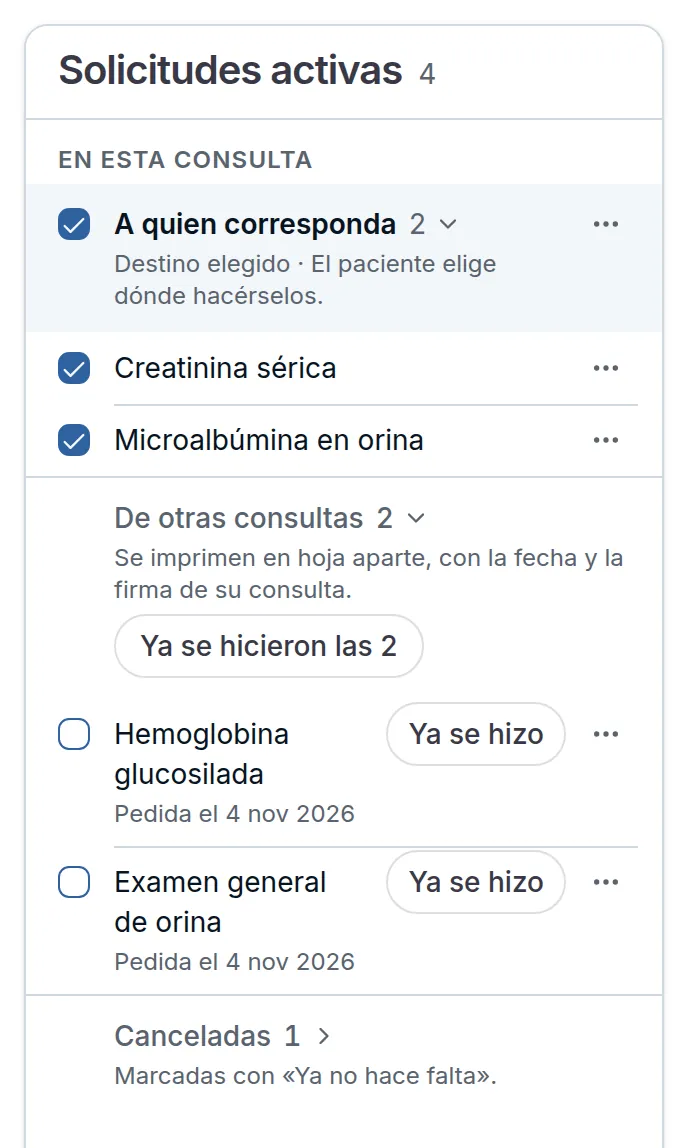
When an earlier test is done, click Ya se hizo (Already done) on its row to move it to Realizadas (Completed), or use the section button above (such as Ya se hicieron las 2, All 2 already done) to close several at once. If a test is no longer needed, pick Ya no hace falta (No longer needed) from its ⋯ menu: it moves to the collapsed Canceladas (Canceled) section at the bottom, where Volver a pendiente (Back to pending) restores it. Every action shows a notice with Deshacer (Undo) in case you change your mind.
When you reorder a test that is still pending from an earlier visit, Astrocyte warns you beforehand in the search box, clinical templates, and assisted documentation that the previous request will be replaced. The new order keeps the same lab unless you pick another, and undoing it returns the earlier request to pending. You can also reorder a test already in Realizadas (Completed) as a follow-up: the search box shows the date it was marked as done.
Clicking Generar PDF (Generate PDF) prints only this visit’s tests unless you also check an earlier one. Requests from other visits print on a separate sheet with the original visit’s date and signature, and the Indicaciones para el paciente (Patient instructions) you write in Solicitudes apply only to the current visit’s tests.
Improvements and fixes
- Allergies when prescribing · Allergies recorded only as text, without a VIDAL code, now stay visible in the alerts panel, in Cambiar presentación o marca (Change product or brand), in clinical templates, and in the full VIDAL report. When a medication matches one by name, you see the amber notice Posible alergia (coincidencia por texto) (Possible allergy, text match), Buscar otro fármaco (Search another drug) is highlighted, and templates leave that row unchecked for you to review.
- Medications in assisted documentation · When you dictate or enter a medication without naming the exact product, the card briefly explains why it proposes that option or leaves the top suggestion ready for you to choose. If you switch product or brand, your actual dose is preserved, unit counts are recalculated automatically, and Astrocyte warns you if the new product cannot deliver that dose.
- High-accuracy dictation · If your internet drops, the service does not respond when you stop recording, or you close the tab mid-dictation, the audio stays saved on your device with the actual cause of the delay, and Astrocyte uploads and transcribes it automatically as soon as it can, even if you leave the visit. Once the text enters the transcript without altering what you wrote in the note, you see Listo (Done) with a Ver consulta (View visit) button; clicking Transcribir ahora (Transcribe now) on a pending dictation resumes the upload immediately even if an earlier attempt stalled.
- Clinical chat and AI context · The chat and AI features now read up to five previous notes of any type, prescription dates, and lab results with their reference ranges and interpretations. They also ignore prescriptions removed or replaced during corrections and take into account the reason you stopped a medication.
- Image reading · AI interpretation of X-rays, ultrasounds, CT scans, MRIs, ECGs, and clinical photos without a written report is now more accurate.
- Send · If a medication, test request, or referral in your selection changed before sending or cannot be issued, the channel shows No se envió (Not sent) with the exact reason and refreshes the list so you can pick again without failed retries.