Pending note alerts and closing requests with results
You can now spot right from your schedule which attended consultations still need their clinical note written, without opening patients one by one, and close pending study requests or referrals in one click as soon as their results arrive.
Pending note alerts in your schedule
In your daily schedule, any consultation attended within the last 7 days whose medical note has no clinical text displays the Sin nota (No note) badge next to Atendido (Attended). The badge is informational only, does not appear during an active visit or in the waiting room, and counts only clinical note text (excluding patient instructions, prescriptions, and transcripts).
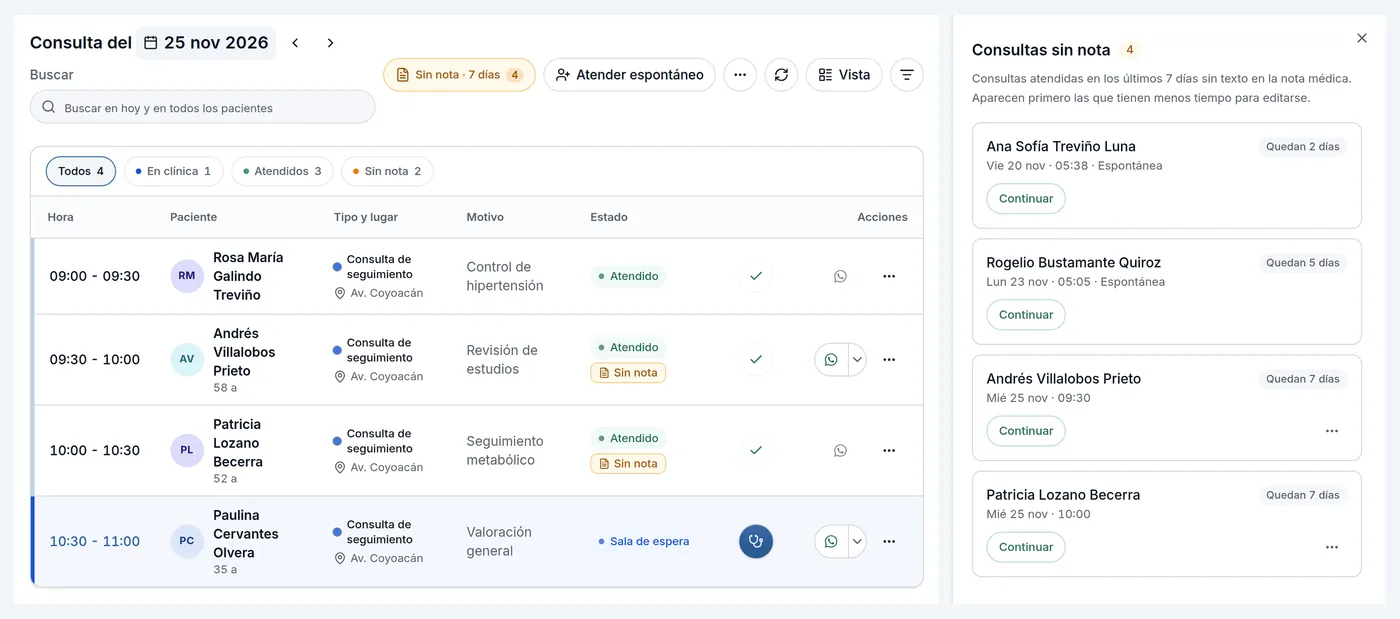
Use the Sin nota (No note) chip to filter the day’s list, or click Sin nota · 7 días (No note · 7 days) at the top to open the Consultas sin nota (Consultations without a note) side panel. Visits are sorted by the least editing time remaining, with a direct Continuar (Continue) button to finish the note. If you opened a visit by mistake and the note is completely empty, the three-dot menu on its card offers Eliminar nota vacía (Delete empty note) with confirmation to make the appointment available again or remove an empty walk-in visit.
Your assistant and organization administrators also see the status in the schedule and the 7-day panel for the active clinician (with Ver nota (View note) and no actions on someone else’s note). In the organization schedule view, the button specifies whether you are viewing your own visits or the selected clinician’s.
Closing study requests and referrals with results
When lab results answering a study you ordered in an earlier visit arrive in the patient’s record, or when a specialist letter matches a pending referral, Astrocyte offers to close that request. Nothing changes status without your confirmation.
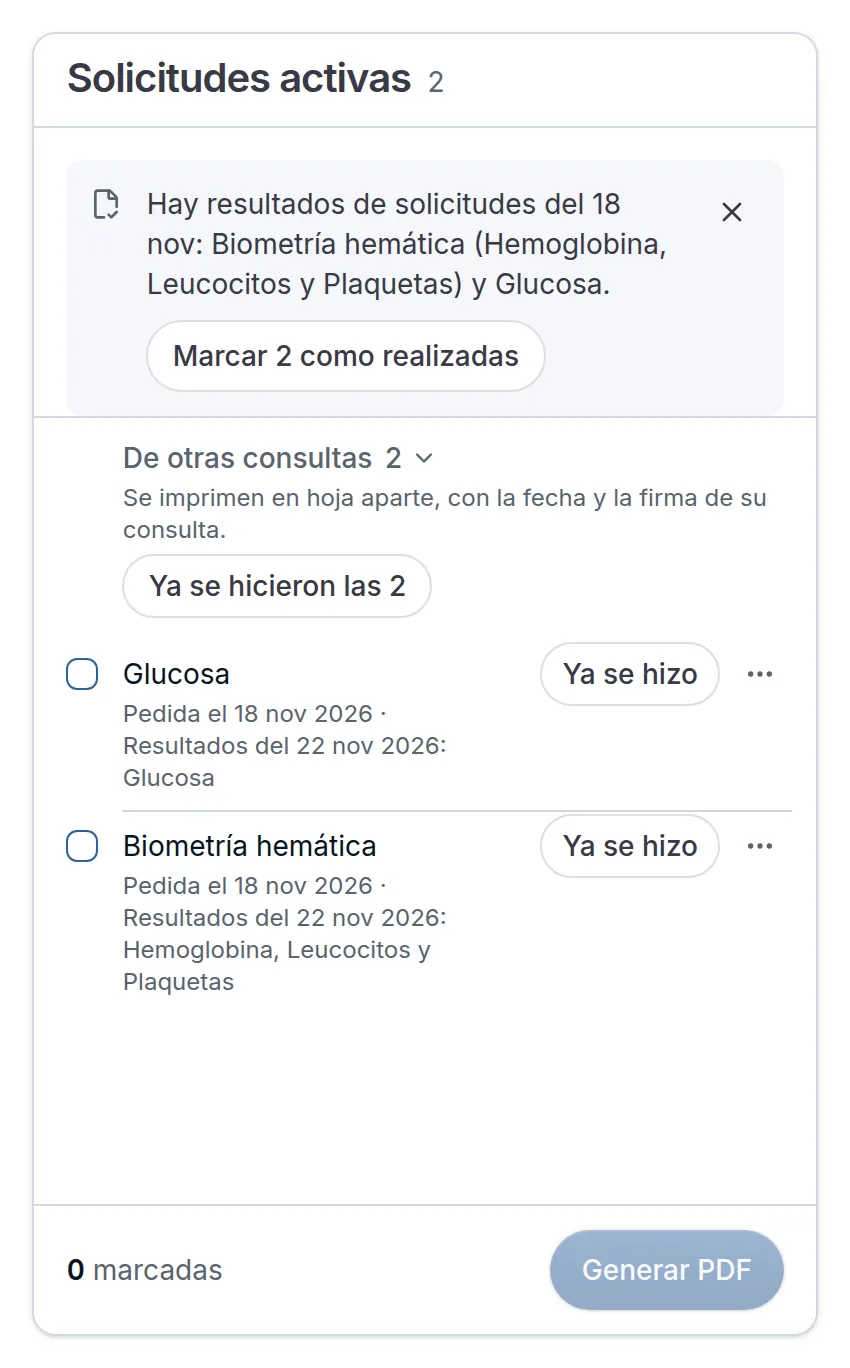
In the Solicitudes (Requests) tab, a banner above the list names what you ordered and which results arrived, with a Marcar como realizada (Mark as completed) button to close them in one step. Each pending row with matching results also shows the study date and analytes received, and clicking Ya se hizo (Done) closes it linked to those results.
The same banner appears in Documentación asistida (Assisted documentation) across the Paraclínicos (Paraclinicals), Diagnósticos (Diagnoses), and Plan steps, when reviewing an uploaded file that matches a pending order, and in Interconsulta (Referral) when a specialist letter arrives. After confirming, you can revert with Deshacer (Undo). Under Realizadas (Completed), each study closed with results shows the study date with con resultados (with results) and a Ver resultados (View results) action to jump straight to the report, or Volver a pendiente (Reopen) if needed. A completed referral can no longer be re-issued or deleted.
Improvements and fixes
- AI drafting · When drafting your clinical note, AI now takes into account the saved Indicaciones para el paciente (Patient instructions), any ongoing pregnancy with its gestational age on the visit date, and current gynecological and obstetric history. It also omits patient contact details from notes and documents.
- Previous treatments · In the consultation side panel, Tratamientos previos (Previous treatments) displays dates in your clinic’s local day and shows dosage in a single line matching your prescription. Renewing a prescription or removing a renewal updates the column right away.
- Dictation · Dictations save in order without duplicating text upon completion, late uploads wait until live dictation finishes, and Limpiar (Clear) also discards pending recordings captured beforehand.
- Lab result reading · When a printed report lists a single reference range, out-of-range alerts are determined more accurately, including scales such as ×10³ and qualitative results.
- Documents and preprinted paper · Half-letter prescriptions fit on a single page across all 16 designs. When activating a preprinted sheet without a signature zone, Astrocyte keeps your digital design for digital delivery by default, shows which design you return to when switching to prescriptions only, and alerts you with a shortcut to Uso y envío digital (Usage and digital delivery) if you try to remove the scan of a sheet active for sending.
- Faster consultations · Saving a change in your consultation or record refreshes only that section instead of reloading the entire screen, and your session reconnects in the background without interrupting your work.
- Passwords · Creating or changing your password now only requires at least 8 characters, with no mandatory uppercase letters, numbers, or symbols; common or breached passwords remain blocked.