AI usage as a percentage, timestamped dictations, and more foliated sheet fields
You can now track your AI usage as a direct percentage of your plan with overages and caps in Mexican pesos, read multiple dictations in a consultation as timestamped blocks, and place 21 new individual fields on your foliated or preprinted sheets.
AI usage as a percentage and overages in pesos
In Perfil → Suscripción (Profile → Subscription), Uso actual (Current usage) now shows Uso de IA (AI usage) as a percentage of your plan allowance instead of credits: it starts at under 1% used and caps visually at 100% used once you reach your base allowance. Medical notes, dictation minutes, and storage stay unchanged.
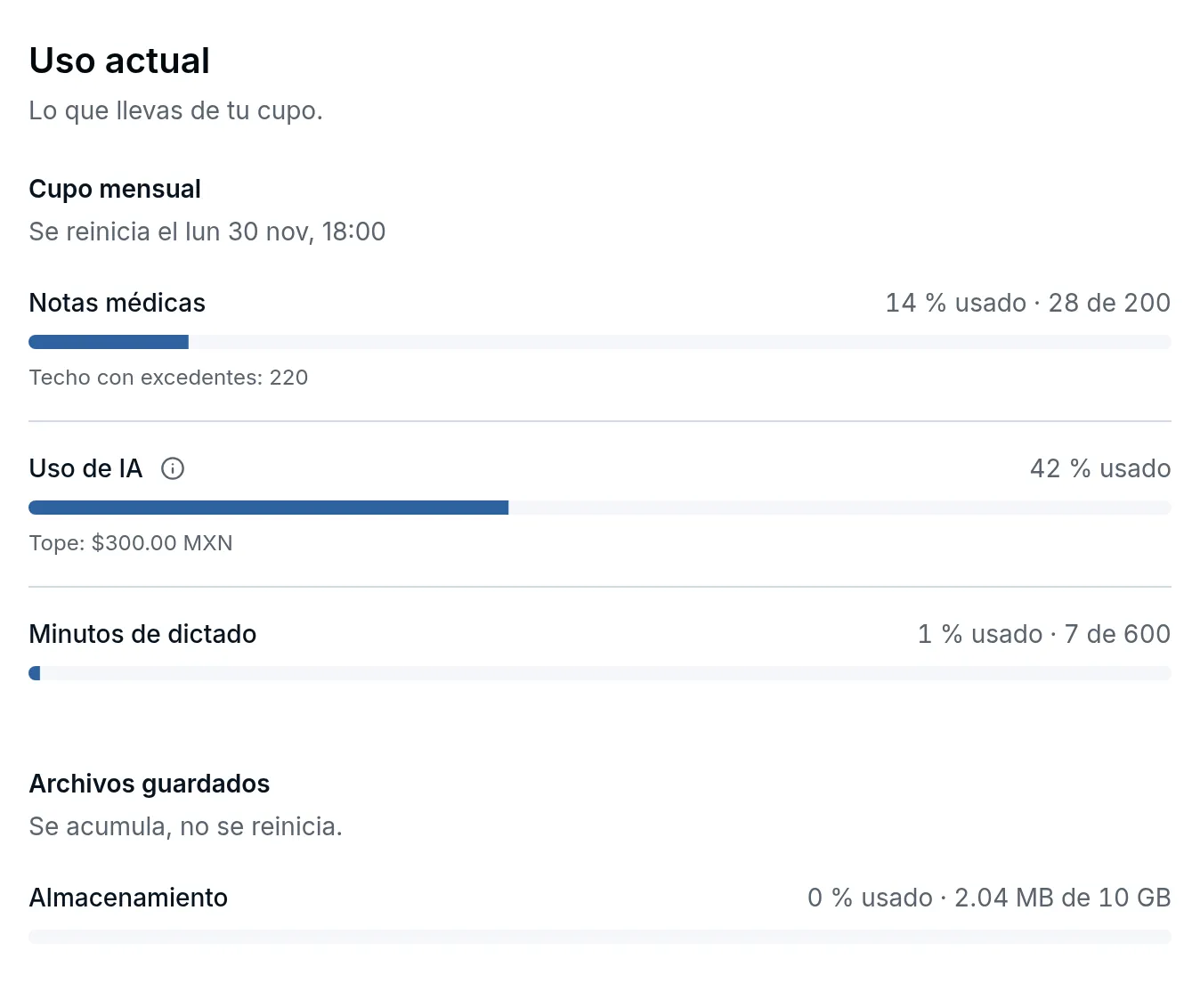
When you enable Permitir excedentes (Allow overages), both your AI overage and your Tope máximo de excedente de IA (MXN) (Maximum AI overage cap in MXN) are viewed and edited in pesos. You are only billed for usage above your base allowance; renewing the same plan preserves your overage toggle and cap, and an AI action that has already started is never cut off mid-way.
Organization administrators can check the Consumido en esta organización (Organization usage) table in Panel de administración (Admin panel) to see each team member’s percentage share of the organization’s AI usage for the period.
Every dictation in its time slot
When you record two or more dictations in the same consultation, the transcription panel separates them into chronological blocks with each block’s time and duration (for example, 10:05 · Dictado (4 min)) so you can follow the real sequence of the visit. With a single dictation, the panel remains a continuous transcript.
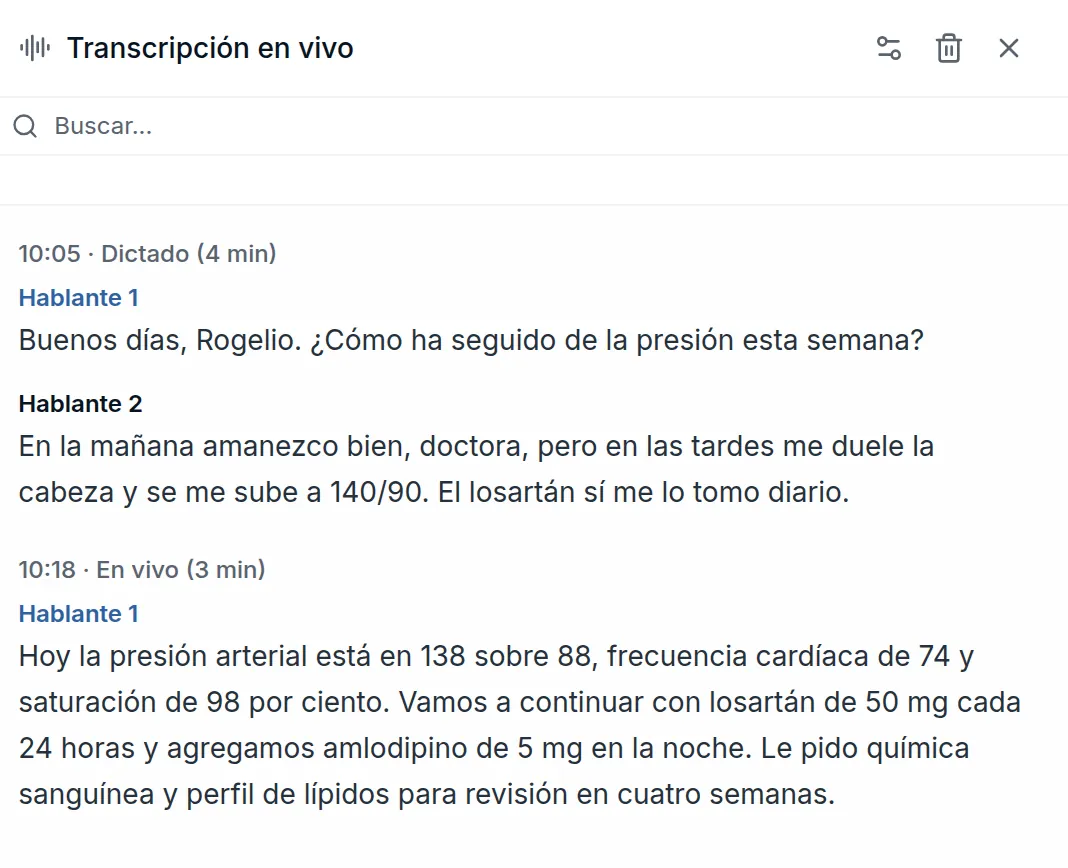
While dictating live, your active session appears in its own En vivo · ahora (Live · now) block from the first second. If a dictation finishes uploading after your connection returns, it lands in its chronological time slot tagged Recién agregado (Recently added).
The Limpiar transcripción (Clear transcription) button always asks for confirmation before clearing and warns you when pending dictations from that consultation will also be discarded. When an audio segment is recovered automatically, you can remove just that segment with Quitar (Remove) from its banner without affecting the rest of the transcript.
More fields in the foliated sheet designer
The foliated and preprinted sheet designer in Perfil → Documentos (Profile → Documents) now includes 37 zones in total (21 new), grouped under Paciente (Patient), Signos vitales y antropometría (Vital signs and anthropometry), Consulta (Consultation), Médico (Clinician), and Consultorio (Clinic). You can place individual fields for blood pressure, heart rate, respiratory rate, temperature, oxygen saturation, weight, height, BMI, clinic name, address, phone, email, and individual patient or clinician details right next to the preprinted labels on your paper.
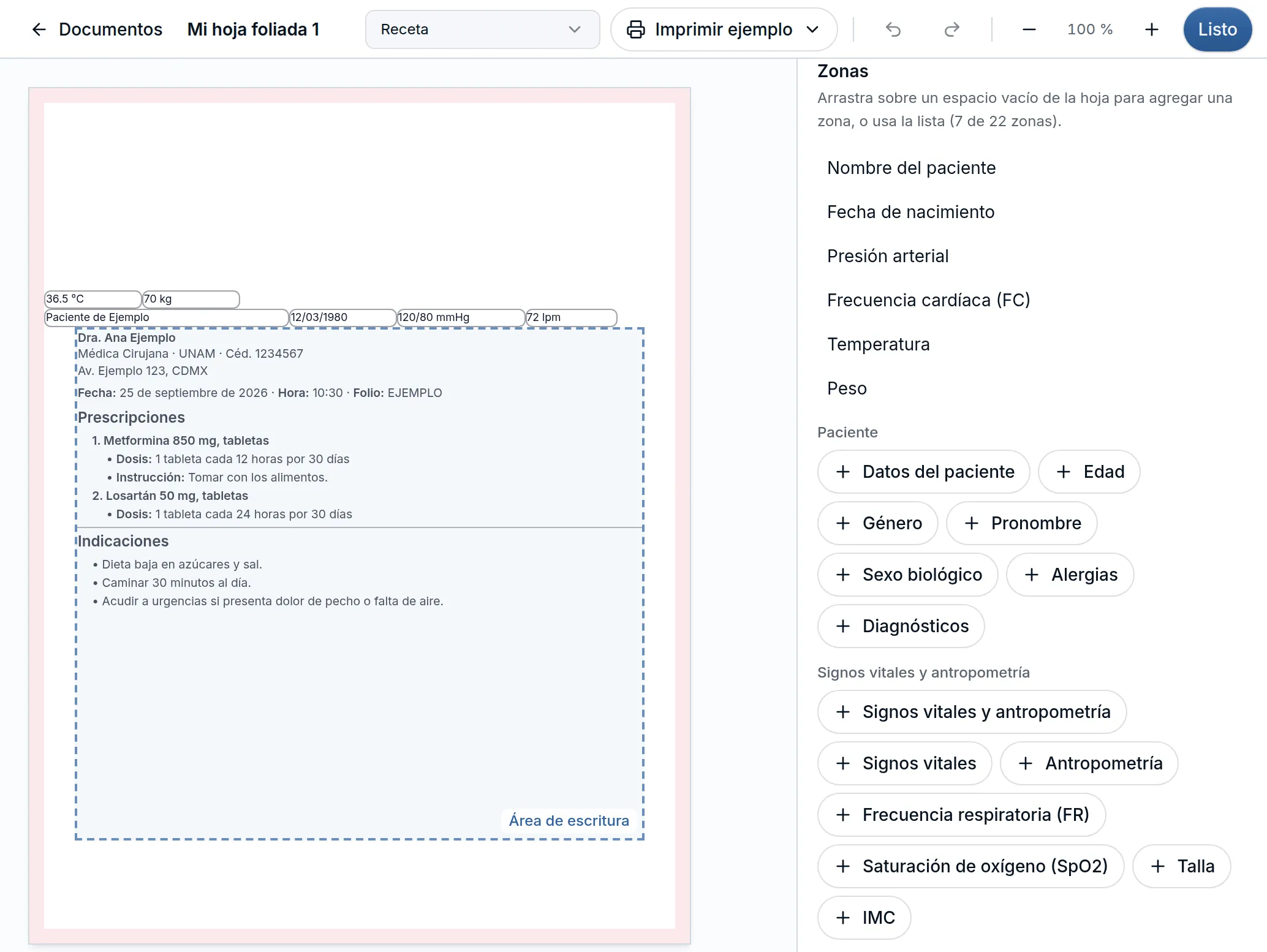
When vital signs or anthropometry have their own dedicated zones, Astrocyte omits them from the opening of the writing area to avoid duplicates or gaps. Optional patient identity zones (Género, Pronombre, and Sexo biológico — Gender, Pronoun, and Biological sex) include a privacy reminder so you only add them when your paper already has a space for them.
Each layout supports up to 22 zones, tracked with a live counter in the Zonas (Zones) panel. Layouts in lists and selectors are now sorted from most recently updated to oldest, with organization sheets listed first followed by personal sheets.
Improvements and fixes
- Studies and labs · Inside an editable consultation, you can now edit the read date of a study directly on its screen using the pencil icon, confirming with the checkmark, Enter, or Ctrl+G and reverting with Deshacer (Undo); when a document has multiple parts with different dates, you edit each part individually. Printed dates with two-digit years are read more accurately, lab reports with word values like «Incontables» (Uncountable) or numeric counts against «Negativo» (Negative) keep their out-of-range flags, and password-protected PDFs now open a Spanish modal to enter the password or cancel.
- Previous treatments · In the consultation side rail, prescriptions whose treatment period has ended now display a neutral Vencida (Expired) badge instead of Activa (Active), while ongoing patient-reported medications without an end date remain Activa, alongside Terminada (Ended) and En pausa (On hold) labels.
- Patient summary · Clinical summaries preserve medical terms that happen to match a patient’s name (such as «dolores articulares» — joint pain — for a patient named Dolores) without printing the patient’s name in the summary.
- Printed documents and agenda walkthrough · Subscripts, clinical symbols, and names in non-Latin scripts render accurately in generated PDFs. In addition, the in-app Novedades (What’s new) dialog now lets you start the guided walkthrough with Muéstrame cómo (Show me how) to locate attended consultations missing a clinical note on your agenda.