
From your WhatsApp
Sending from your WhatsApp is now available. You send your patient the prescription, instructions and orders from your own number, and they can reply right there. Vital signs are also recorded by reading, and the pregnancy keeps the baby’s sex and name.
Send the documents from your WhatsApp
In the visit’s Enviar (Send) panel, Desde mi WhatsApp (From my WhatsApp) appears next to Correo (Email) and WhatsApp de Astrocyte (Astrocyte’s WhatsApp). You choose it, tap Preparar mi WhatsApp (Prepare my WhatsApp) and then Abrir WhatsApp (Open WhatsApp): your WhatsApp opens with the message written, and you press send.
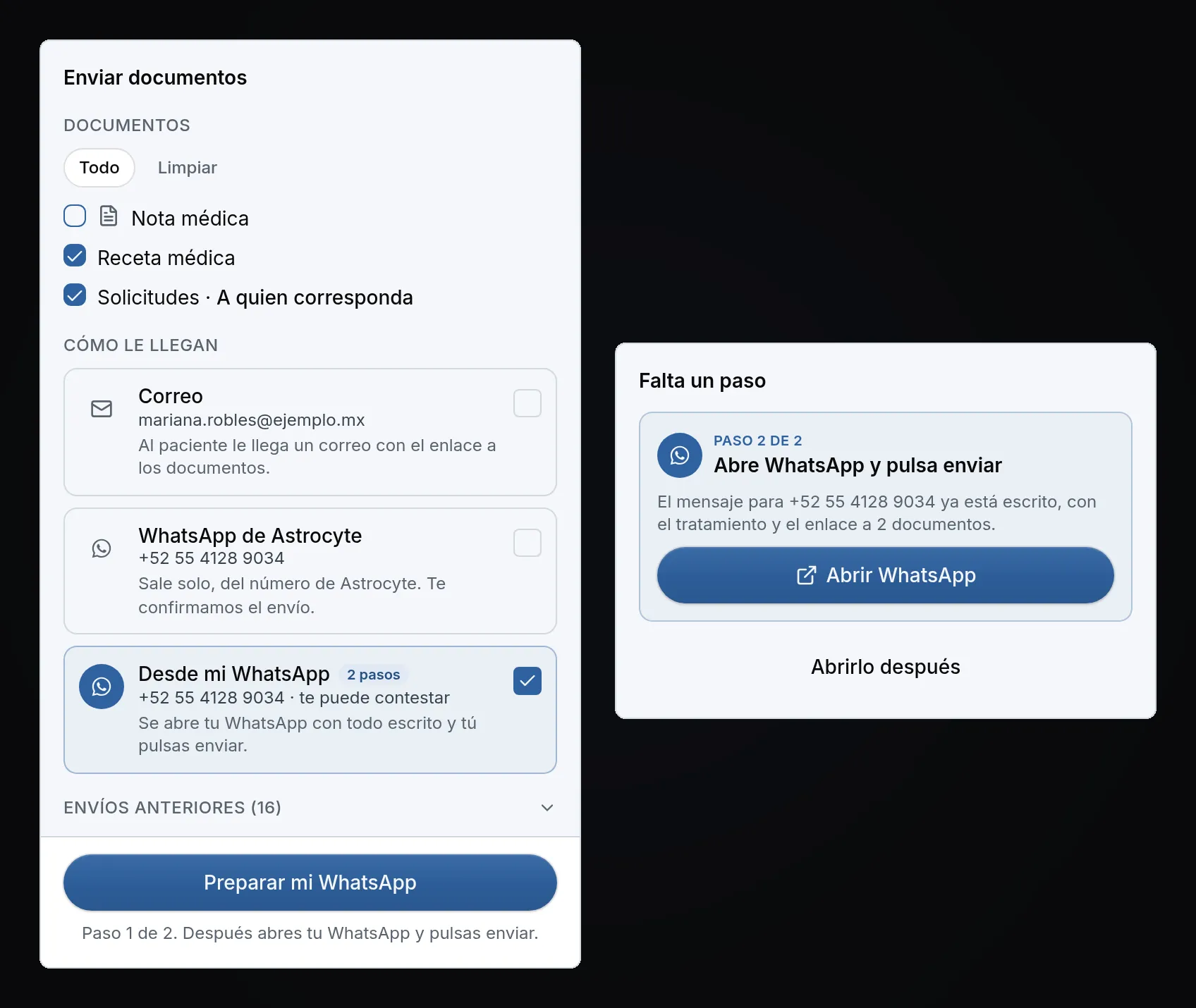
Your patient reads in the chat their treatment with each medication’s dose and instructions, your instructions, their next appointment with you, and your signature with your license number. The link to the signed documents goes at the end, for the pharmacy or the lab. If the instructions are very long, the message tells them they are in the link.
Astrocyte can’t see whether you pressed send. In Enviados (Sent) it shows as Desde tu WhatsApp (From your WhatsApp), and if you didn’t send it, you open it again. Retirar acceso (Revoke access) turns the link off. You can choose Astrocyte’s WhatsApp or From my WhatsApp, not both, so your patient gets a single message.
Vital signs by reading
At the top of the visit, the vital signs strip always shows the latest value of each one. What you measured today is in black; earlier values are in gray with their age, so you know how recent they are.
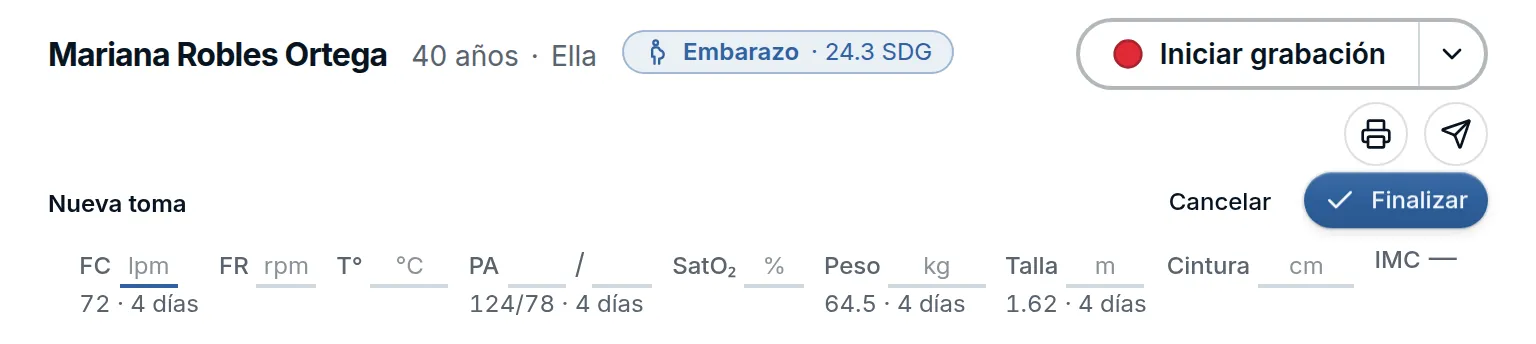
The + button opens a Nueva toma (New reading): the fields start blank and below each one you see the latest value to compare. What you type saves on its own, Finalizar (Finish) closes the reading, and Cancelar (Cancel) or Esc undo it. Hover over or tap a value to see its date and who recorded it.
The prescription dose and the printout use the most recent weight and height, even if you didn’t measure them in this visit. So the dosing is calculated as soon as you type the weight, without pressing Finish.
The baby, in the pregnancy
In the Embarazo (Pregnancy) tab, the Bebé (Baby) block keeps the sex (Niño, Niña, Aún no se sabe or Sorpresa: boy, girl, not known yet or surprise) and the name the parents chose. It saves on its own, and the header badge shows it at every visit.
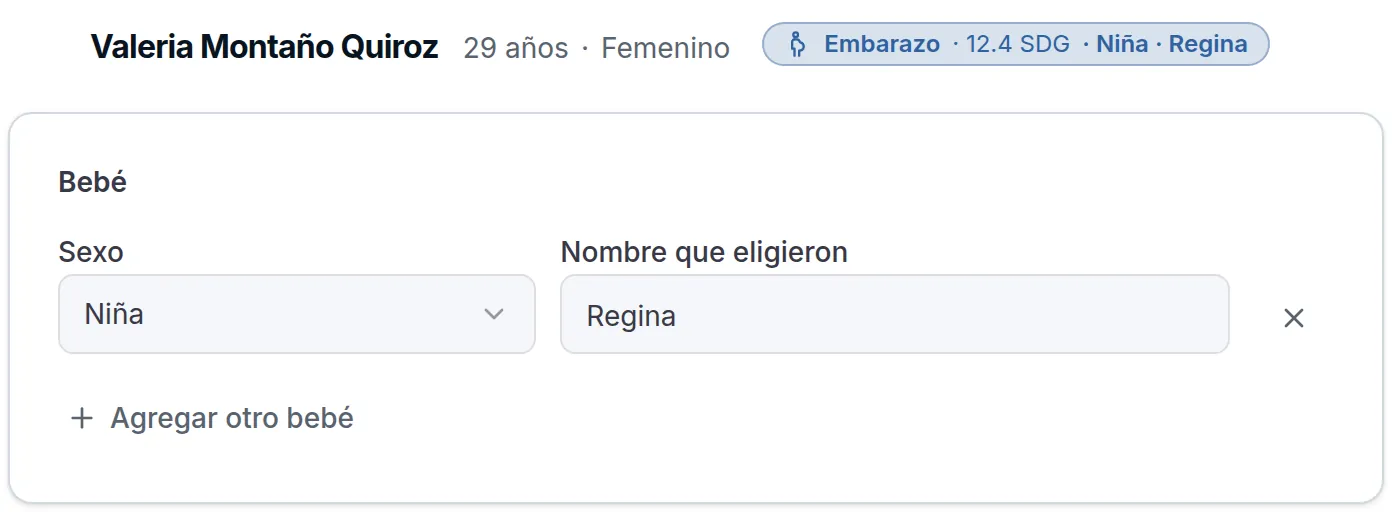
For twins, tap Agregar otro bebé (Add another baby). When you record a delivery or a C-section, it offers to confirm the sex at birth, if you want. The baby also appears in the chart and in the Historia obstétrica (Obstetric history), where you can correct it later.
Improvements and fixes
- Front desk and nursing · If your assistant has Acceso completo (Full access), they receive the patient with Recibir (Receive) and prepare the visit: patient details, files, documents and vital signs. You see the patient in that same visit, without duplicating it. Each person saves their own vital signs reading. Your assistant only sees the buttons their mode allows them to use.
- Quick note · Crear nota rápida (Create quick note) asks for the date of birth or the age, and the note opens with the age in the header. If your organization prefers not to ask for it, it can turn it off in Administración → Comunicación → Datos del alta rápida (Administration → Communication → Quick registration details).
- Visit header · Double-click the patient’s name, age or pronoun to correct it right there. Tapping an allergy takes you to Antecedentes (History).
- Half-written forms · A prescription, diagnosis or referral you haven’t recorded is no longer cleared when you switch sections or go to another patient and come back, as long as you don’t reload the page. The tab shows a dot while something is left to record.
- AI in Instructions and Referral · When it drafts the letter or the referral note, the AI keeps what you already wrote. In Interconsulta (Referral), Accept leaves the proposal in the editor for you to review, and only Registrar interconsulta (Record referral) records it.
- Capture image · In Archivos (Files), Capturar imagen (Capture image) tells you which camera it uses, remembers it on your computer and leaves the image clear, with nothing on top. It works with your computer’s camera, your iPhone as the Mac’s camera or an ultrasound capture device.
- Also · The Consulta (Visits) sheet paints each appointment with the color you chose for its type. Clearing a history item deletes it, and the previous value stays in Mediciones (Measurements) as Dato borrado (Deleted value). A BMI right on a category boundary, such as 29.9, shows the correct category.
