
Correcting and renewing prescriptions
Renewing and correcting prescriptions in the visit are now available. When you open Tratamiento (Treatment), you see what you prescribed in the patient’s previous visit and decide prescription by prescription: renew it in one click or dismiss it. You correct a prescription from the visit in its own row, without deleting it, switch presentation or brand from the search box, and choose which medications go on the prescription when you print or send it.
Renew or dismiss, one by one
Above the prescription list, the Renovar recetas de la consulta previa (Renew prescriptions from the previous visit) box shows everything you prescribed in your previous visit with the patient, current or expired. Tap Renovar (Renew) and the prescription moves to this visit with the same schedule. Tap the ✕ if you won’t renew it: it’s crossed out, with Deshacer (Undo), and the treatment isn’t stopped.
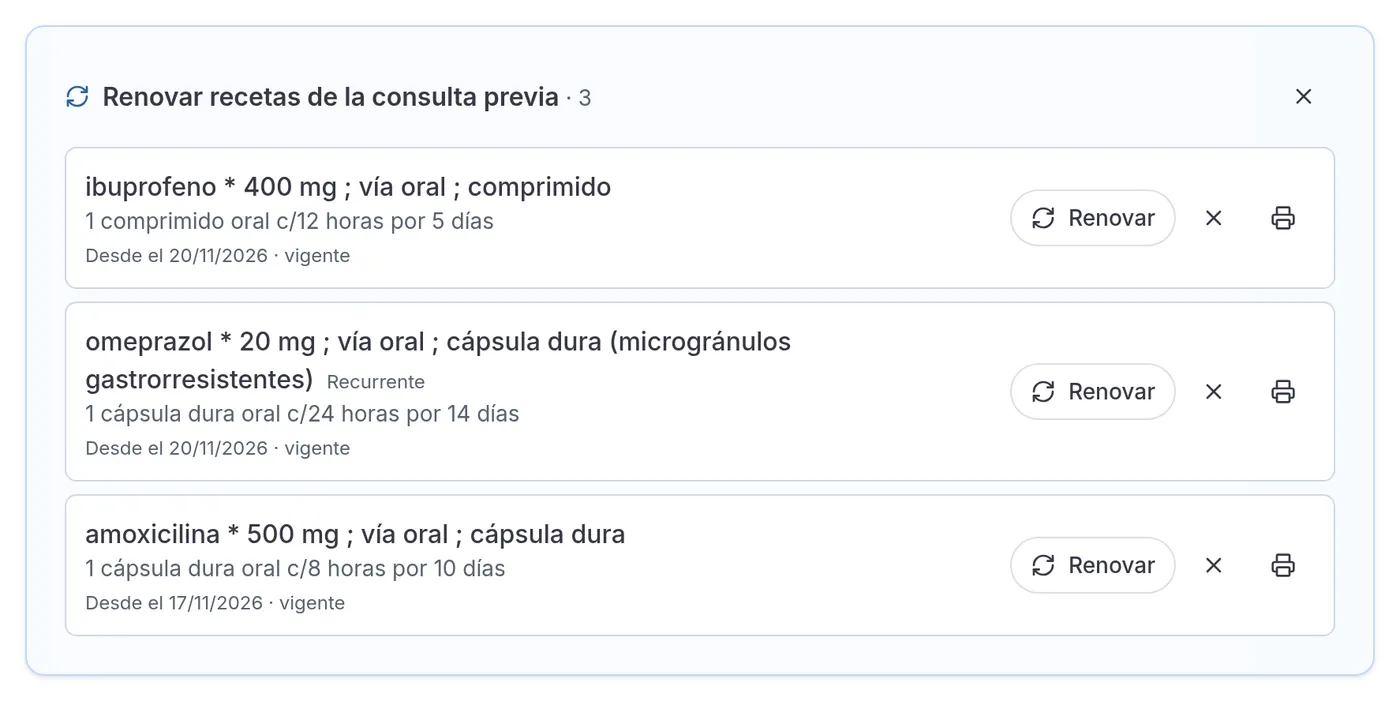
Once you’ve decided on all of them, the box shrinks to a single line. You can also close it with the ✕ at the top and reopen it with Ver (View).
If the patient’s last visit was with another physician, the box splits into Tu última prescripción (Your last prescription), La última prescripción (The last prescription), with your colleague’s name and the date, and Otras recetas para renovar (Other prescriptions to renew): you see yours and what your colleague prescribed, and renew from both.
The box also brings what’s still current from earlier visits. If you mark a long-term treatment as Recurrente (Recurring), such as an antihypertensive, it keeps being offered in the following visits even after it expired. The visit’s prescriptions now go in a single list, Recetas de esta consulta (This visit’s prescriptions), and recurring ones carry their label.
Correct a prescription with ✎
Each prescription in the visit has a ✎ next to the trash can. When you tap it, the form above fills in with that prescription and the Corriges la receta (You’re correcting the prescription) notice shows it as it’s written on a prescription, with its full schedule. Change what you need and tap Guardar cambios (Save changes): the corrected prescription stays in its place in the list and the screen scrolls down to it. The ⓘ on the notice reminds you that the previous prescription is kept in the record’s log.
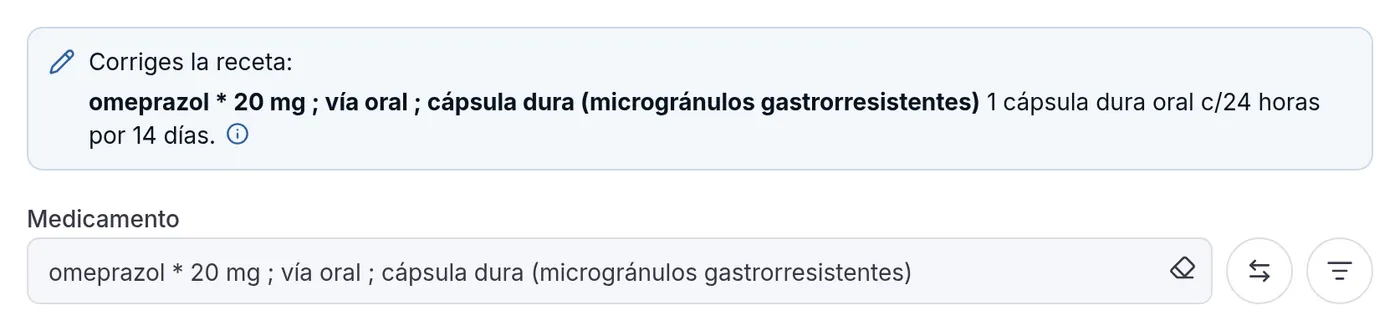
If the medication is still the same active ingredient, the treatment keeps its start date. When you print or send, only the corrected prescription goes out. You can correct while the visit can still be edited.
Another presentation or brand, from the search box
Next to the filter of the medication search box, the ⇄ icon opens the other presentations of what you picked. The other strengths of the same brand come first, such as Nexium 10, 20 or 40 mg. Then come the ones with the same active ingredient, and the same presentation from other brands.
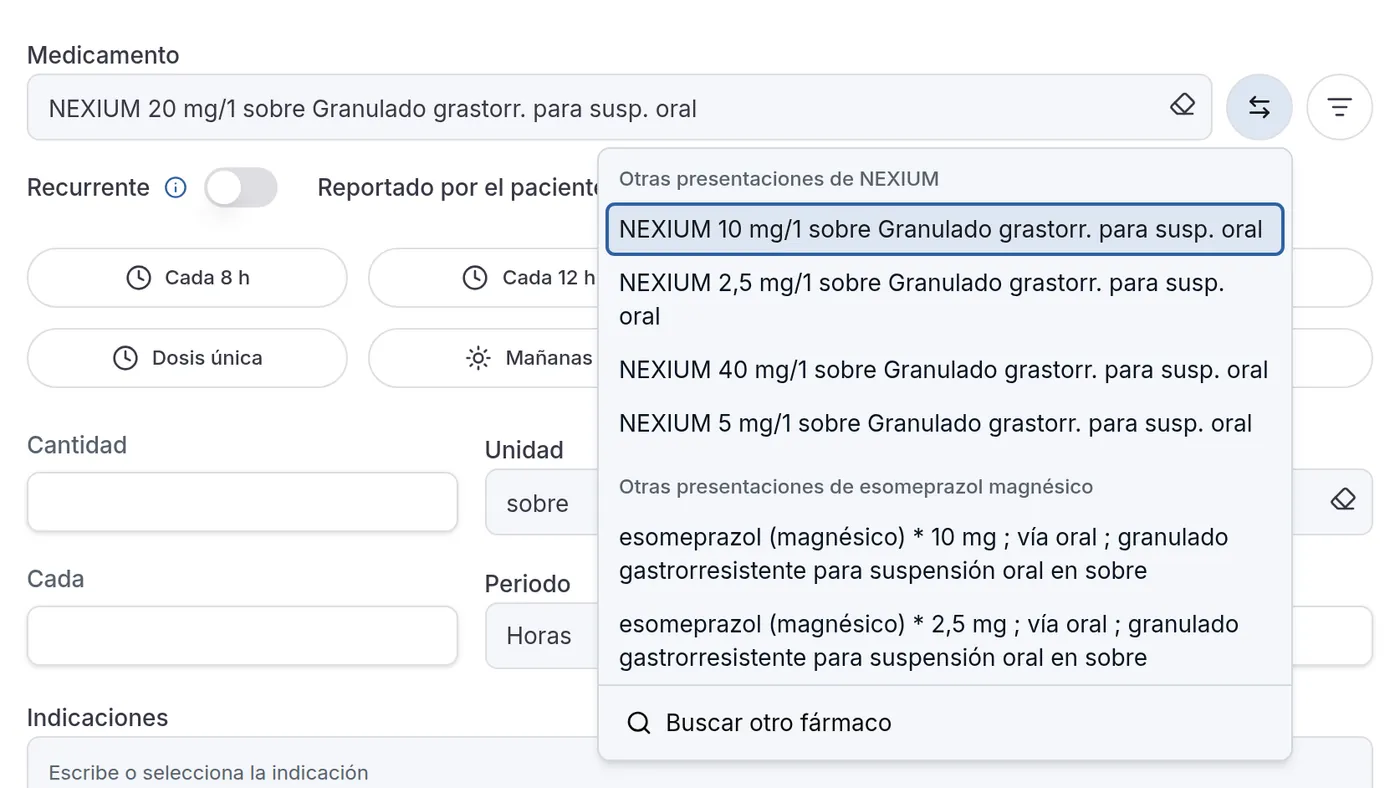
If you pick another strength, the dose number is left empty for you to fill in. If you pick the same presentation from another brand, the schedule stays as it was. It also warns you if the patient has a recorded allergy to that active ingredient. You can move through it with the keyboard arrows and pick with Enter. It works when correcting and when entering a new prescription.
Choose which medications go on the prescription
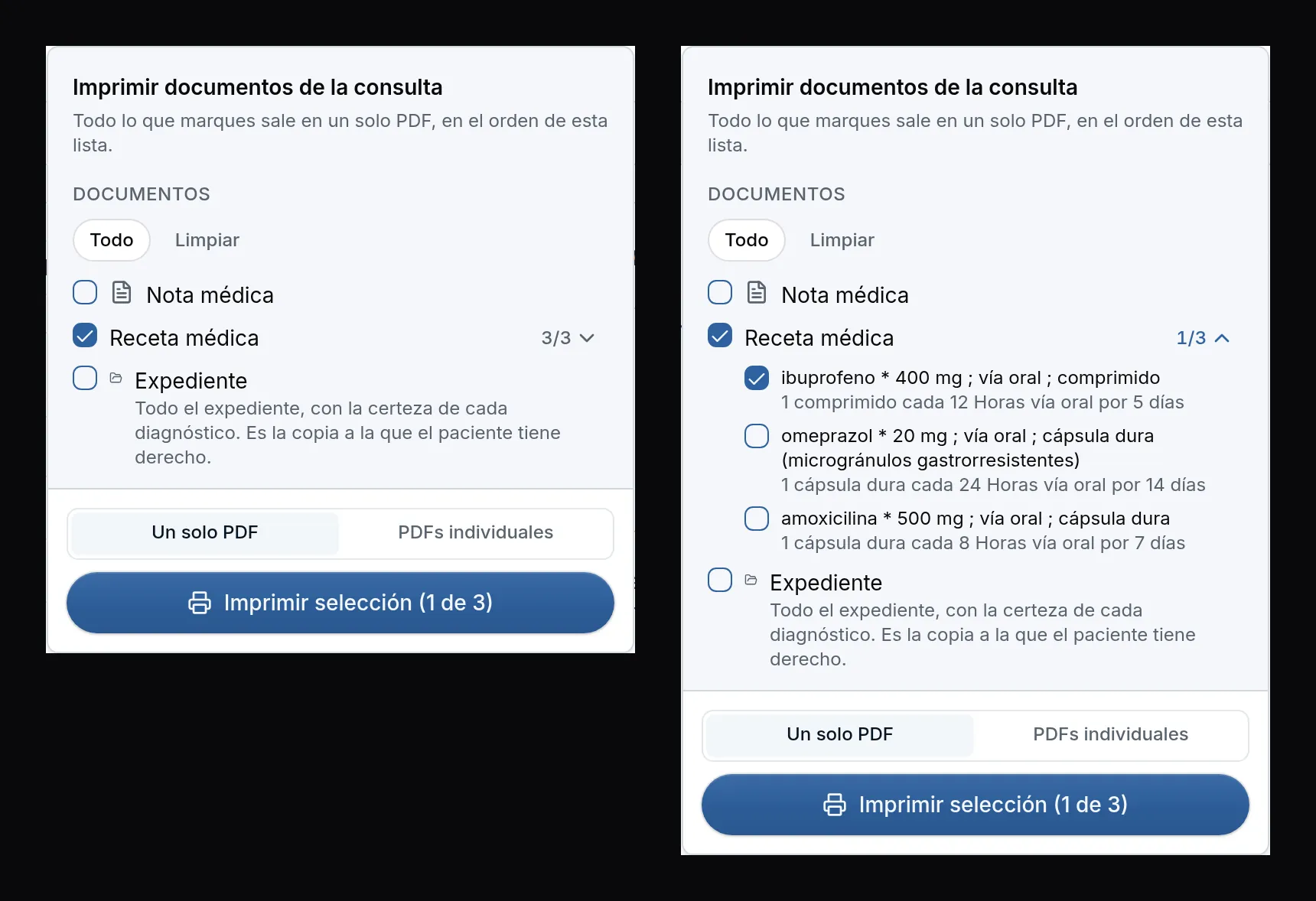
In the visit’s Imprimir (Print) and Enviar (Send) panels, the Receta médica (Prescription) row shows on the right how many medications are included, for example 3/3, when there are two or more. Expand it and uncheck the ones the patient already has: the prescription goes out with only the checked ones, as a single PDF, as individual PDFs or when you send it. Each time you open the panel, it starts with all of them checked.
In Tratamiento, all of the visit’s prescriptions start checked. Imprimir recetas (Print prescriptions) and Imprimir recetas + indicaciones (Print prescriptions + instructions) print only the checked ones, together on one prescription, with the instructions inside or on a separate sheet according to your preference. What you uncheck there is remembered on that computer for that visit.
Improvements and fixes
- Document format · Antropometría (Anthropometry: weight, height, BMI and waist) can now be turned off separately from Signos vitales (Vital signs) on the prescription, the study request and the referral, in Perfil → Formato de documentos (Profile → Document format) and in the organization’s standard. Instructions printed on their own follow what you chose for your prescription.
- Shortcuts, dates and times · Ctrl + G works on every tab of the visit. If the cursor is in a form that is recorded with Enter, such as a prenatal check, it records it; if it’s in one with its own button, such as an allergy, it tells you that form is saved with its button. Outside a form, it says Esta pantalla está guardada (This screen is saved) only when everything was saved. In dates, the day, month or year is corrected in place without mangling the rest, the calendar goes up to 2100, and a date or time that isn’t accepted tells you why. Times accept 3pm or 3:30 p. m., and when scheduling, a 3 means 3 in the afternoon.
- AI note · Improving with ✧ and the note draft in the chat start writing within one or two seconds, and their headings come out with their accents: Exploración física (Physical exam), Análisis (Assessment), Pronóstico (Prognosis).
- Prescription alerts · VIDAL alerts read with their accents and dose symbols, such as ≥, µg or mg/m².
- Labs · Solicitudes (Requests) and Laboratorios (Labs) show one row per study, without copies of the same name. In Agregar observación (Add observation) the unit fills in on its own and the other units are offered as buttons. If you upload a lab report as a PDF while the note has proposed results not yet accepted, once it’s read they’re compared against it: what the report already includes shows as already recorded and isn’t duplicated.
- Patient details · A complete CURP whose last character isn’t the expected one is saved with a notice so you can compare it with the document. Each CURP and RFC notice says whether it lets you save, and the red notice goes away as soon as you fix the data. The pre-visit questionnaire no longer replaces an address you recorded only as text, such as a dictated or foreign one: it proposes it for you to decide, and if the address the patient sent is incomplete, it tells you what’s missing. If you rename an allergy to another one the patient already has active, Antecedentes (History) tells you it already exists.
