New designs for your documents
The new Documentos (Documents) section is now available with 16 ready-made designs for your prescriptions, test requests, referrals, notes, and patient instructions. You pick a style and paper size while viewing a live PDF with your details, and every document setting now lives on a single page.
16 ready-made designs with live preview
In Perfil → Documentos (Profile → Documents), select Elegir un diseño listo (Choose a ready-made design) to open the full-screen gallery. The 16 designs are grouped into Sobrios (Understated: Clásica, Centrada, Institucional, Dos logos, Editorial, and Monograma), Con color (With color: Banda de pie, Franjas en diagonal, Pestaña en la esquina, Bloque de encabezado, Banda vertical, Ondas suaves, and Columna lateral), and Recetario tradicional (Traditional prescription pad: Marca de agua, Recetario en una tinta, and Minimalista lateral).
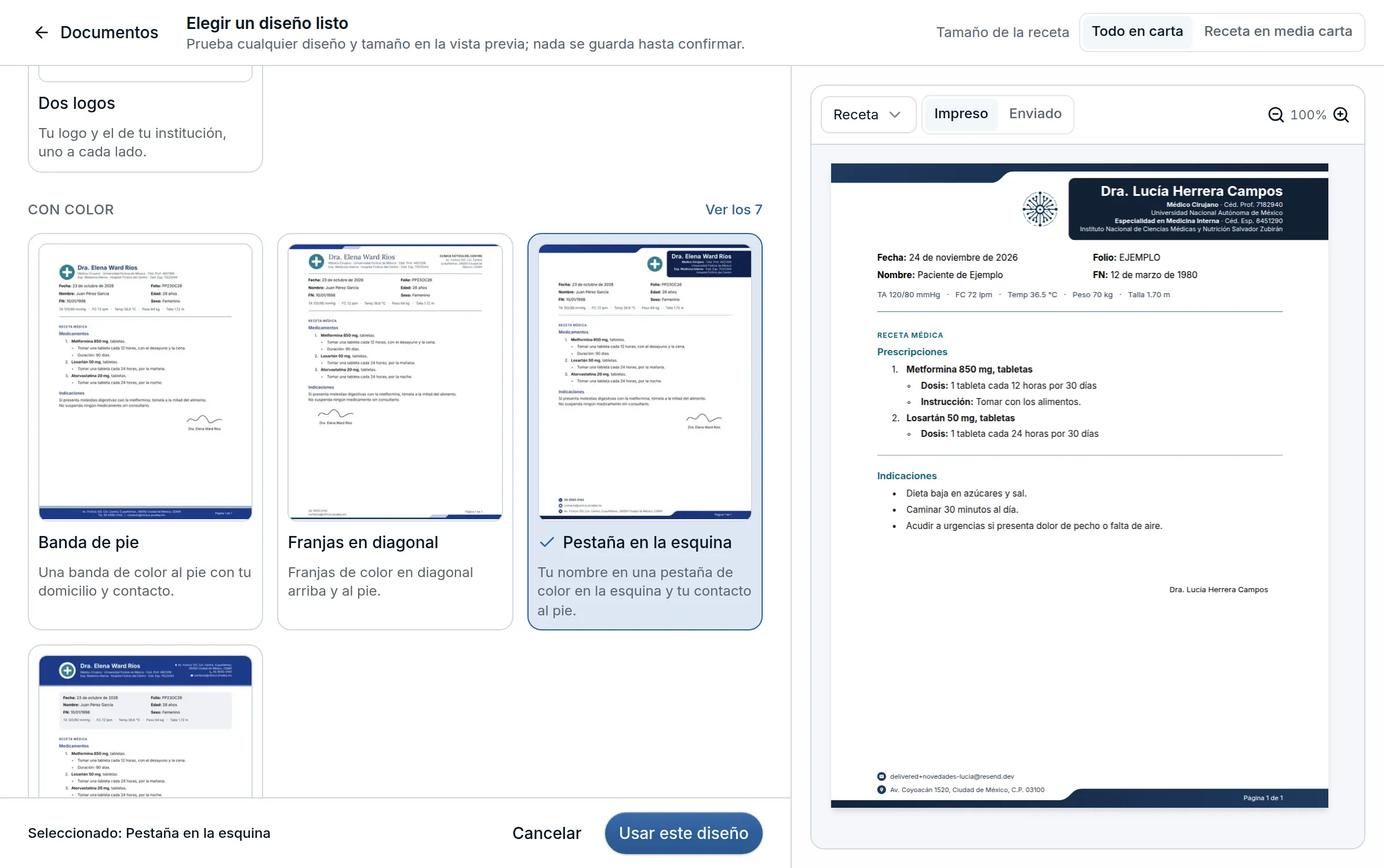
At the top, choose between Todo en carta (All letter) and Receta en media carta (Half-letter prescription): half-letter applies only to the prescription and its instructions when printed together, while test requests, referrals, notes, and letters remain letter-sized with the same design. On the right, preview the actual PDF for each document type in both Impreso (Print) and Enviado (Sent) modes. Nothing is saved until you click Usar este diseño (Use this design), and you can revert right away with Deshacer (Undo).
Everything on one page: Documents
Formato de documentos (Document format) is now Documentos (Documents) in Perfil → Documentos (Profile → Documents), bringing together the four sections that used to live in separate tabs: Tu diseño (Your design), ¿Qué dice el encabezado? (What goes in the header?), ¿Qué lleva cada documento? (What goes in each document?), and Expediente clínico impreso (Printed health record), with a sticky live preview alongside on desktop.
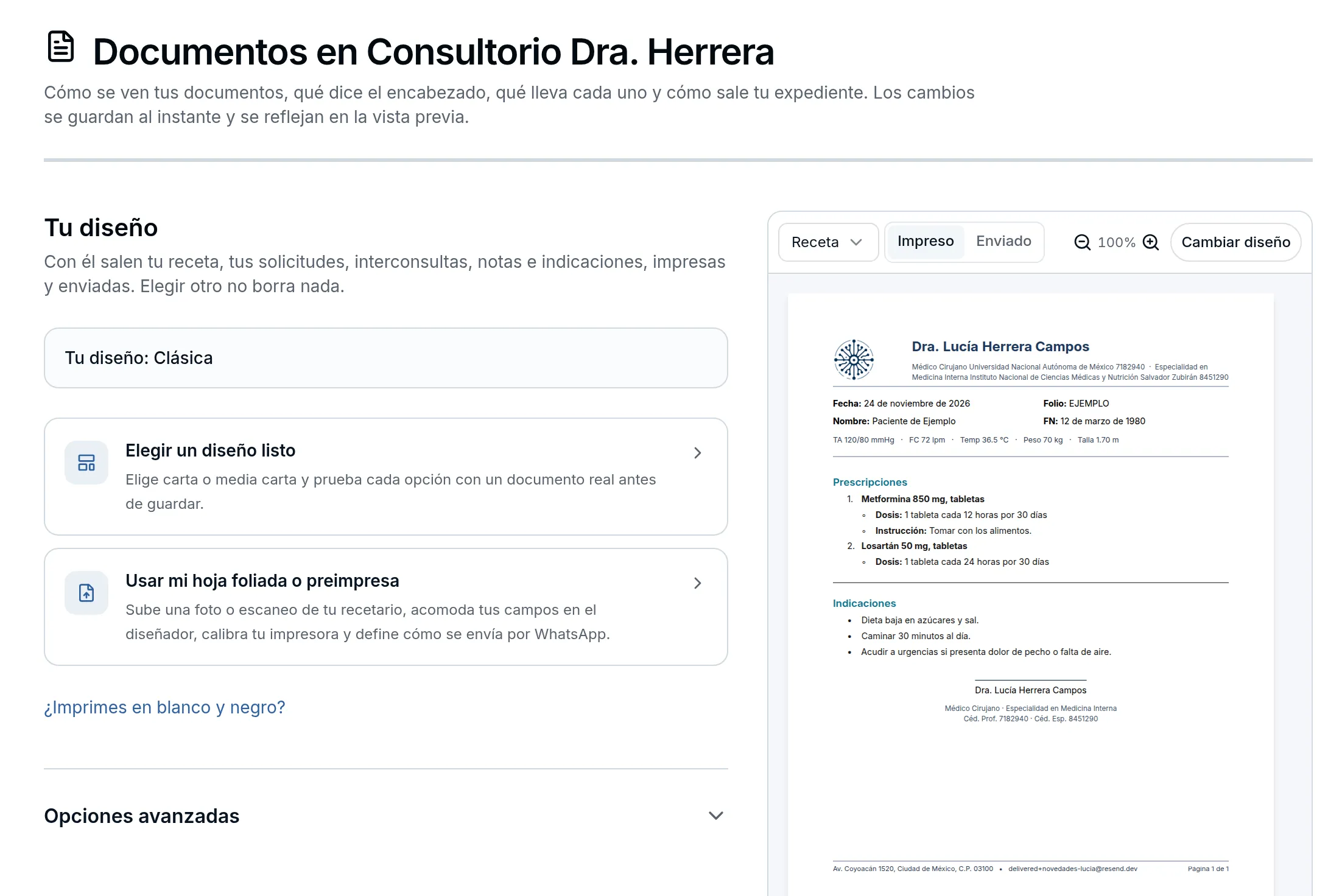
Under ¿Qué dice el encabezado? (What goes in the header?), you can edit your name, degrees and licenses, logo, digital signature, and clinic address right inline without leaving the page, seeing each update in the preview immediately. Under ¿Qué lleva cada documento? → Al imprimir la consulta (When printing the visit), the Imprimo en blanco y negro (I print in black and white) toggle softens colored bands for monochrome printers while keeping full color when sending via WhatsApp or email. From Opciones avanzadas (Advanced options), you can still assign a different design to a specific document or channel if needed.
Organization administrators have the same screen in Panel de administración → Documentos (Admin panel → Documents) to suggest a design for the team or turn on Imponer este diseño a todo el equipo (Enforce this design for the whole team). If turned off later, each clinician recovers their own setup. When an assistant prints or sends a visit, documents automatically use the authoring clinician’s design.
Your preprinted pad, straight to the designer
Clicking Usar mi hoja foliada o preimpresa (Use my preprinted pad) creates the sheet immediately and opens the full designer with no setup modal in between. You can rename it, set the paper size, arrange text zones, and upload a scan or photo of your pad; if you leave a newly created sheet without editing or activating it, it is discarded automatically. When uploading or replacing an image in Subir la hoja (Upload your sheet), you can pick your physical paper size (Carta, Media carta horizontal, Media carta vertical, Otro tamaño…, or Girar 90°) and frame the scan before confirming with Usar esta hoja (Use this sheet), without losing what was already saved.
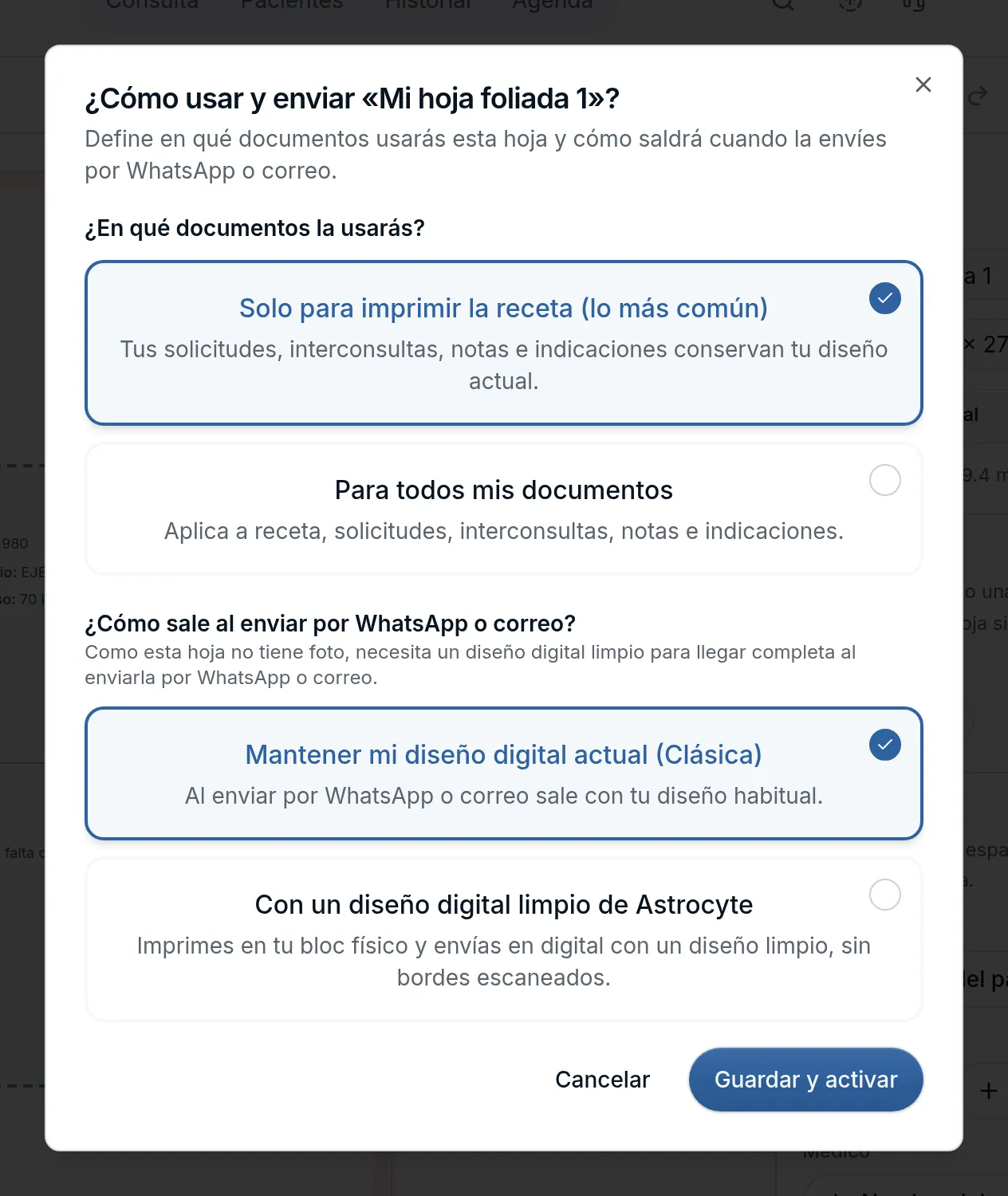
When you click Listo (Done), a single dialog lets you choose whether the sheet applies Solo para imprimir la receta (lo más común) (Print prescriptions only, most common) or Para todos mis documentos (For all my documents), and how it should be sent via WhatsApp or email: with the photo of your preprinted pad (when an image is uploaded), keeping your current digital design, or using a clean digital Astrocyte design. Clicking Guardar y activar (Save and activate) saves everything at once, with Deshacer (Undo).
Improvements and fixes
- Renewing prescriptions · When a patient has two different regimens for the same medication, such as a morning dose and an evening dose, renewing one now keeps the other visible in Renovar recetas de la consulta previa (Renew prescriptions from the previous visit) so you can renew it in one click as well. When you renew with a changed dose, the previous dose no longer reappears under Otras recetas (Other prescriptions).
- Patient record · Editing several fields in a row on a patient’s record, such as saving a phone number and then an email address right after, now saves smoothly without false conflict notices. Phone numbers and email addresses are also saved and cleared independently, so removing one does not affect the other or interfere with adding contact details when booking an appointment.