Filter views in Patients
You can now build, save, and share clinical filter views directly on top of Pacientes (Patients), without leaving your directory or losing consultation actions. Identify follow-up cohorts in seconds, review each chart side by side, and export the results ready for Excel.
Filter by clinical conditions without leaving Patients
Next to the search bar in Pacientes (Patients), the new Filtros | ▾ (Filters) split button brings together directory filters and clinical filter views. Click Filtros to open the side panel and select Agregar condición (Add condition); you can combine up to 10 conditions: ICD-10 diagnosis (by code, category, or range), lab result with automatic unit conversion and time window, blood pressure, BMI, active pregnancy, upcoming due date, age, sex, pending requested studies, and time since last visit. Any condition can be inverted with Excluir (Exclude).
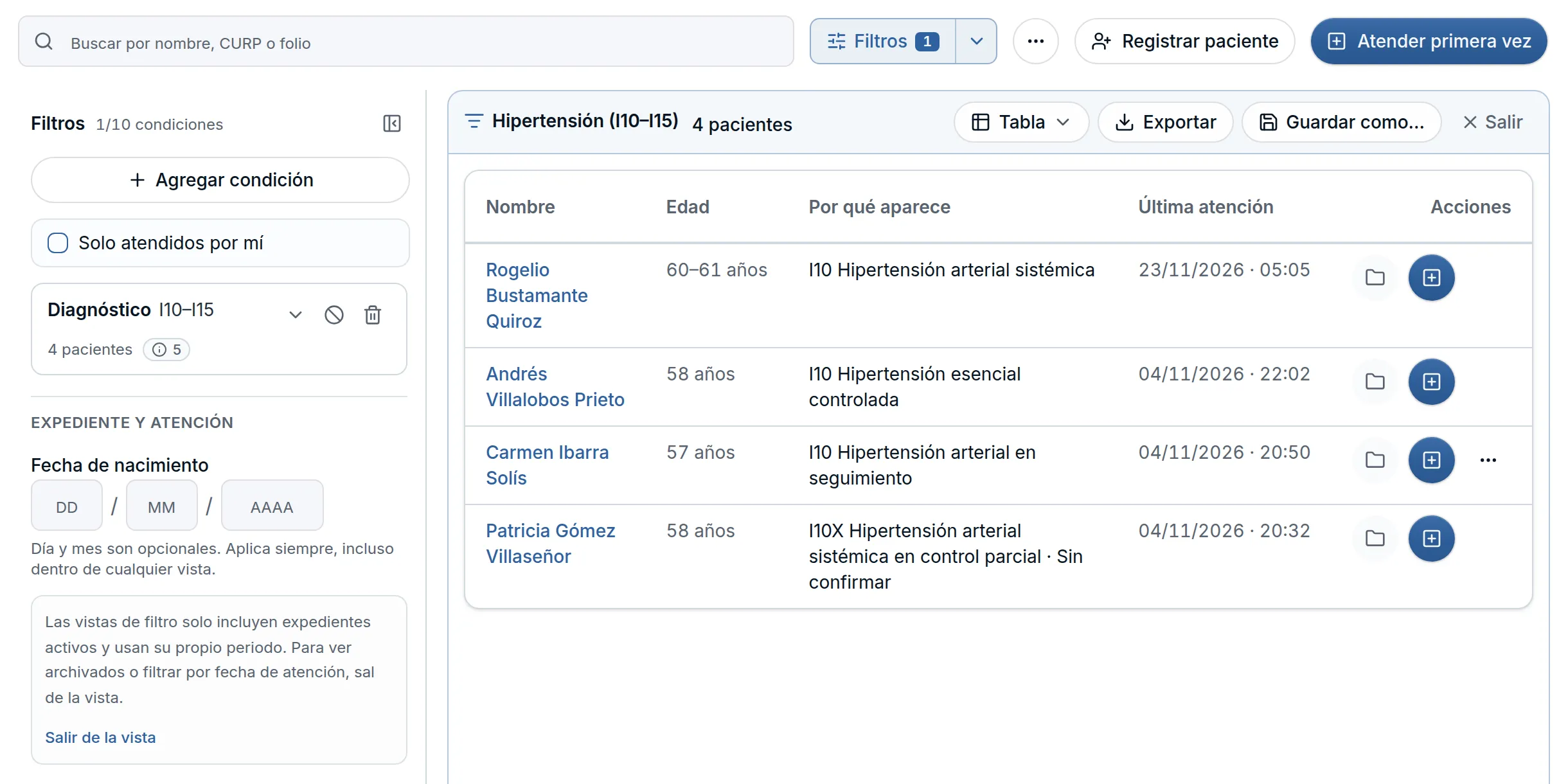
Every row explains the exact value, code, or date that matched in the Por qué aparece (Why matched) column. When a patient is missing data (such as no recorded sex or an incomparable unit), Astrocyte never guesses: it shows a compact counter next to the condition indicating how many patients could not be evaluated, with an option to include them if needed.
Inside the same panel, you can toggle Solo atendidos por mí (Only seen by me, or the delegated clinician for assistants) and combine any active view with the name, CURP, or folio search bar and Fecha de nacimiento (Birth date) to narrow results on the fly without changing the saved view. Estado del expediente (Record status) and Fecha de atención (Visit date) remain available when viewing all patients, with a one-click Salir de la vista (Exit view) link.
Review records side by side and keep all your actions
While working inside a filter view, clicking a patient’s name opens their full clinical record in a slide-over side panel (or side by side when you switch to Vista dividida — Split view — on wide screens), complete with a strip summarizing why the patient matched and arrows to move through the list without losing your place.
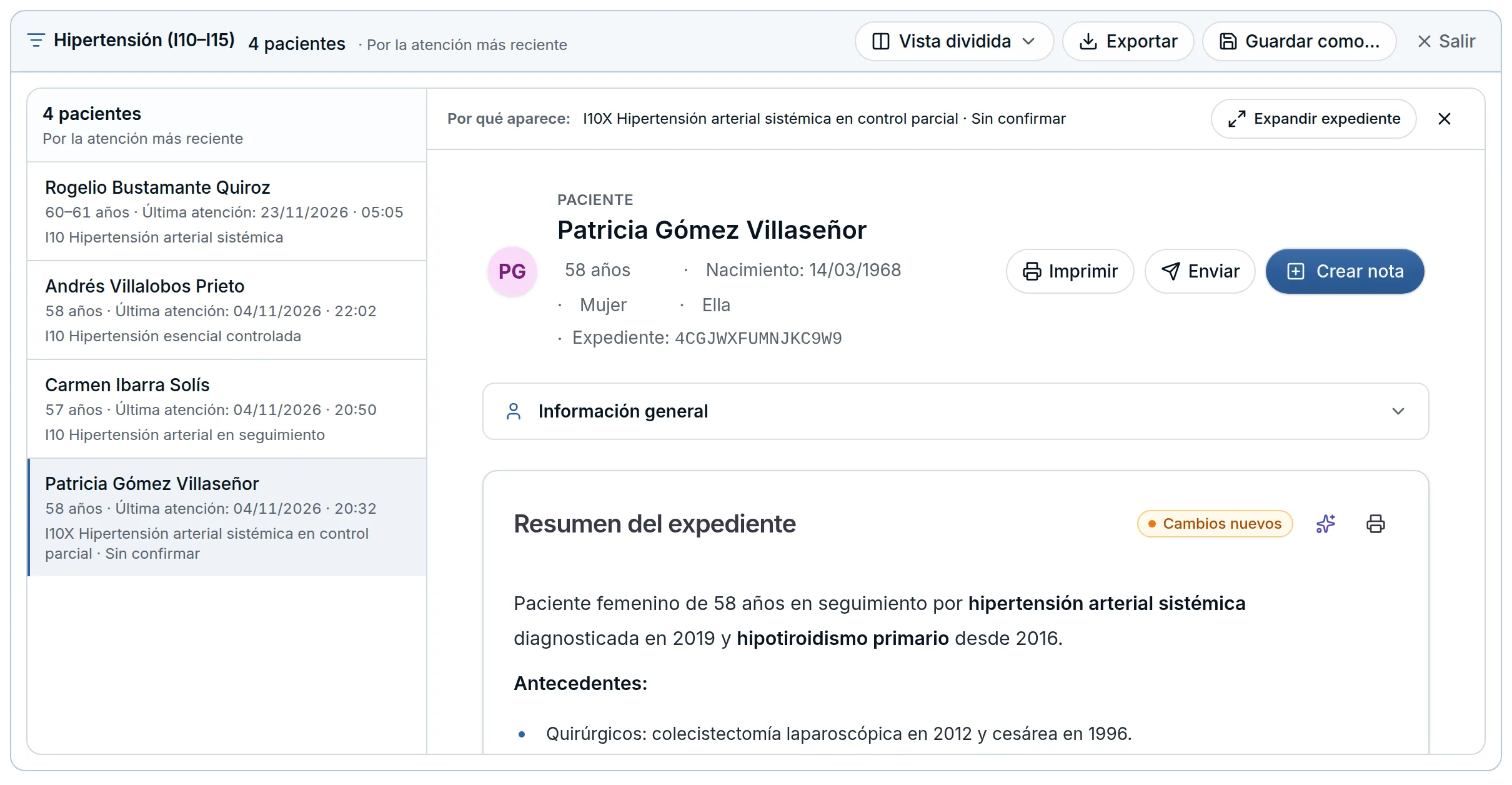
When you want the full-page chart, click Expandir expediente (Expand record): the top bar offers a direct link back to your view (Volver a «View name») and arrows to step through patients on that page. Every row also preserves full directory actions: Ver expediente (View record), Crear nota (Create note) or Recibir (Check in), Archivar / Desarchivar (Archive / Unarchive), and checkboxes for Fusionar pacientes (Merge patients).
Suggested views, saved views, and Excel export
The ▾ arrow on the Filtros (Filters) button opens a searchable menu with Nueva vista de filtro (New filter view), Recientes (Recent), Mías (Mine), De la organización (Organization), and 11 ready-to-use Sugeridas (Suggested) views — including pregnant patients, upcoming due dates within 30 days, diabetes mellitus (E10–E14), diabetes without HbA1c in 6 months, studies pending 30+ days, and patients not seen in 6 months. You can also jump straight there from the command palette via Vistas de filtro de pacientes (Patient filter views).
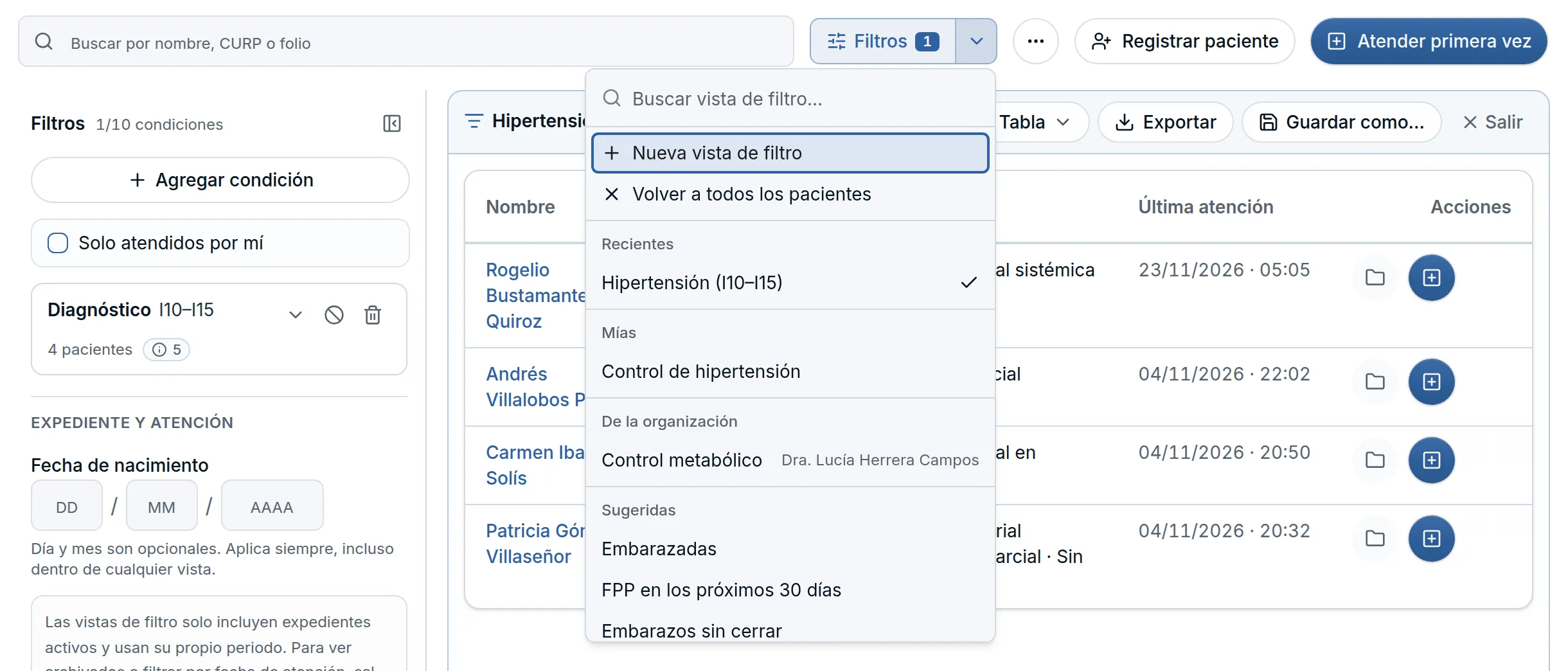
Clicking Guardar (Save) or Guardar como… (Save as…) saves the rule rather than a static snapshot: each time you open the view, it shows who matches that day, either for Solo yo (Only me) or Toda la organización (Entire organization). Assistants with clinical delegation can run their clinician’s views; those with full clinical access can also save personal views and export.
Exportar (Export) downloads an Excel-ready CSV with all visible matching patients (up to 2,000, respecting active search or birth date filters), including age, each condition’s matching detail, last visit, Mexican local phone formatting, and record number. A confirmation dialog states how many patients are included, and every download is logged in each patient’s access audit trail.
Improvements and fixes
- Patient directory · The Edad (Age) column now displays a patient’s stated age when no birth date is recorded yet.
- Diagnosis picker · The ICD-10 diagnosis selector now indicates from the start that you can type at least 3 letters or enter the code directly.